2009.03.02 - .NET Reflection and State Machines

The .NET framework’s reflection setup can be amazingly useful.  At a basic level, it allows you to get just about any information you could want about any type, method, assembly, etc that you could want.  In addition, you can programmatically access type constructors and methods, and invoke them directly, allowing you to do all sorts of neat stuff.

One useful application of this is in the creation of state machines.  Imagine an entity in a game that flies around in a pattern for a bit, then stops to shoot some bullets, then returns to flying.  Such an entity would have two states, “Flying” and “Shooting.”

A First Attempt

You might decide to create a state machine that could handle this entity, but also be usable for all entities that need a state structure.  What should a state machine like that need to be able to do?

One such set of possibilities is as follows:

  • Be able to assign a state based on a string state name.
  • Each state has three functions:
    • Begin – This function is called whenever the state is transitioned into, allowing it to initialize anything that needs it.
    • Tick – This is the meat of a state, it is called once per game tick while the state is active.
    • End – This is called when the state is transitioned out of, allowing any clean up.  Note that this is called before the next state’s Begin function is called.
  • However, a state shouldn’t have to specify functions that it doesn’t need.  If a state has no need for the Begin function, it doesn’t need to implement it.
  • If the state changes during a Tick call, the new state will tick as soon as it happens.  This allows many states to fall through in rapid succession.  For instance, a player character in a 2D Mario-like puzzle might be in the middle of the “Jumping” state, while holding right on the controller.  When the character hits the ground, it would transition into the “Standing” state, but from there, it would then transition into “Walking” because the player is holding right.  That way, the character would land and immediately start walking, which is what one would expect when playing the game.

So what would a first draft version of such a machine need to look like?  First, we’d need a place to store delegates to the three functions needed for a state:

public delegate void StateDelegate();

class StateInfo
{
  public StateDelegate OnBegin { get; set; }
  public StateDelegate OnTick { get; set; }
  public StateDelegate OnEnd { get; set; }

  public void Begin()
  {
    if (OnBegin != null)
      OnBegin();
  }

  public void Tick()
  {
    if (OnTick != null)
      OnTick();
  }

  public void End()
  {
    if (OnEnd != null)
      OnEnd();
  }

  public StateInfo()
  {
    OnBegin = null;
    OnTick = null;
    OnEnd = null;
  }
}

Given that, we can now store them in a dictionary, indexed by by the state’s name (a string).  To initialize it, we would just call AddState with the state name and three delegates (which may be null, to specify that a given function is unnecessary), and it would add that state to the list.  We also need to be able to Tick the state machine and change the state.  The whole contraption would look something like the following:

public class StateMachine
{
  Dictionary<string, StateInfo> states = new Dictionary<string, StateInfo>();
  bool ticking = false;
  StateInfo currentStateInfo = null;
  string currentStateName = null;

  public void AddState(string stateName, StateDelegate begin, StateDelegate tick, StateDelegate end)
  {
    StateInfo info = new StateInfo();
    info.OnBegin = begin;
    info.OnTick = tick;
    info.OnEnd = end;

    states.Add(stateName, info);

    // If no states have been set yet, this state becomes the initial state.
    if(currentStateName == null)
      State = stateName;
  }

  public string State
  {
    get { return currentStateName; }
    set
    {
      // End the previous state.
      if (currentStateName != null)
        currentStateInfo.End();

      // Set the new state
      currentStateName = value;
      currentStateInfo = states[currentStateName];

      // Initialize it.
      currentStateInfo.Begin();

      // If we're in the middle of the Tick function, go ahead and tick the new
      // state now, as well.
      if (ticking)
        currentStateInfo.Tick();
    }
  }

  public void Tick()
  {
    // Set ticking so that we know that we're in the middle of ticking this machine.
    // That way, if the state changes in the middle of this, we know to run the next
    // state's Tick as well.
    ticking = true;
    currentStateInfo.Tick();
    ticking = false;
  }
}

As you can see, it’s fairly straightforward.  An entity can call AddState (probably during its constructor) on the state machine to add a new state.  It can assign a new state by using State = “newState”, which will end the current state and begin the new state.  Finally, the entity just needs to call Tick to run the current state.

In practice, this might look something like:

public class FlyShooter : EntityBase
{
  /* Entity vars Go here */
  StateMachine machine = new StateMachine();

  public FlyShooter()
  {
    /* Initialize stuff */

    // Flying doesn't need an end
    machine.AddState("Flying", FlyingBegin, FlyingTick, null); 

    // Shooting doesn't need Begin or End.
    machine.AddState("Shooting", null, ShootingTick, null);
  }

  void FlyingBegin()
  {
    /* Begin flying state */
  }

  void FlyingTick()
  {
    if( IsTimeToShoot )
    {
      machine.State = "Shooting";
      return;
    }
    /* Tick flying */
  }

  void ShootingTick()
  {
    if( DoneShooting )
    {
      machine.State = "Flying";
      return;
    }
    /* Tick shooting */
  }

  public override void Tick()
  {
    machine.Tick();
    /* Also tick anything that happens in all states */
  }
}

There’s not much to it.

One thing to note is that the way that the state fall-through works (that is, changing state in the middle of another state’s Tick function) will still cause the rest of the current function to execute (after it’s already partially run another state), so it’s best to either change states at the very end of the function or to return after setting the new state, as is done above).

Though this works pretty well as-is, say you want to add new states to an entity afterwards.  What if the enemy now needs a special “Dying” state.  Not only do you have to add new functions (DyingBegin, DyingTick, and DyingEnd), you also have to remember to call AddState at object startup.  Wouldn’t it be nice if you could just add the new functions and it would just work?  As it turns out, using .NET’s reflection functionality, you can do exactly that!

Mirror, Mirror On the Wall, What Are the States That I Can Call?

There are a number of ways to implement a state machine system using reflection.  The one that was settled upon for Procyon was the design with the least redundancy (that is, “don’t repeat yourself”).  State names only appear once in a given entity’s codebase (excepting when states are set), and it takes a small number of characters, right where the state code is defined, to mark a state.  At the point that it’s added to the code, it’s already ready to use, there’s no additional list of states to update.

Most reflection code works by looking for .NET Attributes.  Attributes are class objects that can be added as metadata to a class, a method, a property, or any number of other pieces of your code.  Also, you can create your own attributes – program-specific metadata that you can later find.

In the case of the state machine, a very simple attribute is needed.

using System.Reflection;

[AttributeUsage(AttributeTargets.Method)]
public class State : Attribute
{
}

It doesn’t need any sort of custom data, so there’s not much to it.  The AttributeUsage at the top (which is, itself, an attribute) specifies that the “State” attribute being defined can only be applied to methods.  Attempting to add it to anything else (say, a class) would generate a compiler error.

With this attribute, you’ll be able to mark methods as states.  In this case, each method will take a StateInfo as a parameter (meaning that the StateInfo class, which was described above, has to be a public class now).  The method will then fill in the state information with delegates.  The most elegant way to handle this is using anonymous delegates.  Here’s that enemy class again, using the new method:

public class FlyShooter : EntityBase
{
  /* Entity vars Go here */
  StateMachine machine;

  public FlyShooter()
  {
    /* Initialize stuff */

    // Create the new state machine with "Flying" as the initial state.
    machine = new StateMachine(this, "Flying");

    // Note - no states are being explicitly initialized here.
  }

  [State]
  void Flying(StateInfo info)
  {
    info.OnBegin = delegate()
    {
      /* Begin flying state */
    };

    info.OnTick = delegate()
    {
      if (IsTimeToShoot)
      {
        machine.State = "Shooting";
        return;
      }
      /* Tick flying */
    };

    // Don't need to set info.End
  }

  [State]
  void Shooting(StateInfo info)
  {
    info.OnTick = delegate()
    {
      if (DoneShooting)
      {
        machine.State = "Flying";
        return;
      }
      /* Tick shooting */
    };
  }

  public override void Tick()
  {
    machine.Tick();
    /* Also tick anything that happens in all states */
  }
}

As you can see, the [State] attribute is there.  Each of the (up to) three functions for a state are initialized inside of the state function, cleanly grouping the three functions together into one unit.  The state function’s name is the state’s name, so it’s only specified once.  And, of course, there’s no manual list manipulation; to add a new state, simply add the code for the new state and make sure that it’s marked by a [State] attribute…the runtime will take care of the rest.

To get this whole thing to work, though, there’ll obviously have to be some code to find methods using it.  When creating your state machine, you’ll now want to pass in a pointer to the object that the state machine belongs to.  From that, it will be able to get the type of object for which you’re creating the state machine.  Automatically adding states that are marked with your state attribute goes something like this:

  • Scan through each method in the type of the object you passed in (if you want to be able to grab private methods from parent classes of the current object’s type, you’ll need to scan through the classes in the heirarchy one by one)
  • If it doesn’t have the State attribute, continue on to the next method.
  • If it does have the attribute, get the name of the method (this becomes the state’s name).
  • Once you have the name of the method, call the method and let it populate a StateInfo that you hand to it.
  • Once that’s done, add the method into the state dictionary, using the state method’s name as the key (and thus, the state name).

The AddState function can go away – it’s no longer necessary, as the state list is now update completely automatically.  The StateMachine class’ constructor needs to be updated a bit, to add all of this reflection magic into it.  It will now look something like this:

/// <summary>
/// Create a new state machine using the given object - it will automatically
/// search for State attribute-marked methods and use those to generate its
/// state table at creation time.
/// </summary>
/// <param name="param">The object that the state machine belongs to</param>
/// <param name="initialState">The name of the initial state of the machine.</param>
public StateMachine(object param, string initialState)
{
  Type paramType = param.GetType();

  // Loop through parent types to make sure to pick up any private states.
  for (Type currentType = paramType; currentType != typeof(object); currentType = currentType.BaseType)
  {
    // Now loop through each method in this type (and this type only, no parent methods).
    foreach (var method in currentType.GetMethods(BindingFlags.Instance | BindingFlags.DeclaredOnly |
                                                  BindingFlags.NonPublic | BindingFlags.Public))
    {
      // See if this method is a State.  If it's not, go on to the next method.
      object[] attributes = method.GetCustomAttributes(typeof(State), true);
      if (attributes.Length == 0)
        continue;

      // Get the method name, ensure it's not already in the list.
      string methodName = method.Name;
      if (states.ContainsKey(methodName))
        continue;

      // Call into this method to populate the state info...
      StateInfo info = new StateInfo();
      method.Invoke(param, new object[] { info });

      // ...and add it into the state list.
      states.Add(methodName, info);
    }
  }

  if (initialState != null)
    State = initialState;
}

None of the rest of the state machine class’ code needs to change; it all works exactly as it did before.  The new constructor means that the list gets created at state machine creation time, but the rest of the internal data remains exactly the same.

Possible Improvements

It works pretty well as-is, but there are ways it could be improved.  For instance:

  • You could add a type of “Sleep” method to the state machine, to make it delay a certain number of ticks before continuing to tick the current state
  • You could add a list of transitions to the StateInfo, so that all transitions to different states can be declared up-front, in an easy-to-read manner.  That removes that extra state-setting clutter from your tick routine (and even means that a state may not need a Tick routine at all!)
  • If you need multiple sets of states for objects (say the player needs a collection of states for movement and a separate collection of states for weapons fire), you could modify the State attribute to provide a collection name (like [State("Movement")]), and specify a state collection when creating your state machine.

This is a small list of possible changes.  If you have other ideas, let me know!

2009.02.25 - Lightning Bolts

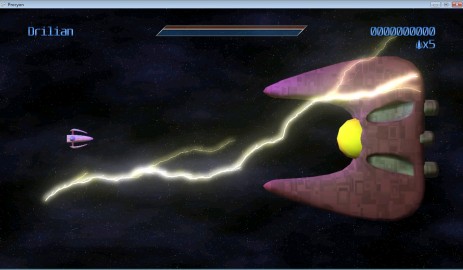
You’re flying your ship down a cavern, dodging and weaving through enemy fire.  It’s becoming rapidly apparent, however, that you’re outmatched.  So, desperate to survive, you flip The Switch.  Yes, that switch.  The one that you reserve for those…special occasions.  Your ship charges up and releases bolt after deadly bolt of lightning into your opponents, devastating the entire enemy fleet.

At least, that’s the plan.

But how do you, the game developer, RENDER such an effect?

Lightning Is Fractally Right

As it turns out, generating lightning between two endpoints can be a deceptively simple thing to generate.  It can be generated as an L-System (with some randomization per generation).  Some simple pseudo-code follows: (note that this code, and really everything in this article, is geared towards generating 2D bolts; in general, that’s all you should need…in 3D, simply generate a bolt such that it’s offset relative to the camera’s view plane.  Or you can do the offsets in the full three dimensions, it’s your choice)

segmentList.Add(new Segment(startPoint, endPoint));
offsetAmount = maximumOffset; // the maximum amount to offset a lightning vertex.
for each generation (some number of generations)
  for each segment that was in segmentList when this generation started
    segmentList.Remove(segment); // This segment is no longer necessary.

    midPoint = Average(startpoint, endPoint);
    // Offset the midpoint by a random amount along the normal.
    midPoint += Perpendicular(Normalize(endPoint-startPoint))*RandomFloat(-offsetAmount,offsetAmount);

    // Create two new segments that span from the start point to the end point,
    // but with the new (randomly-offset) midpoint.
    segmentList.Add(new Segment(startPoint, midPoint));
    segmentList.Add(new Segment(midPoint, endPoint));
  end for
  offsetAmount /= 2; // Each subsequent generation offsets at max half as much as the generation before.
end for

Essentially, on each generation, subdivide each line segment into two, and offset the new point a little bit.  Each generation has half of the offset that the previous had.

So, for 5 generations, you would get:

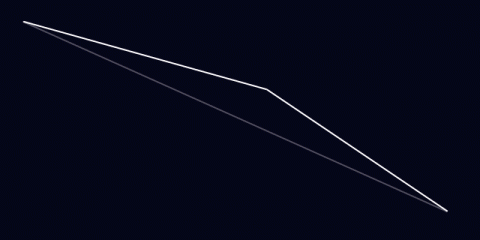
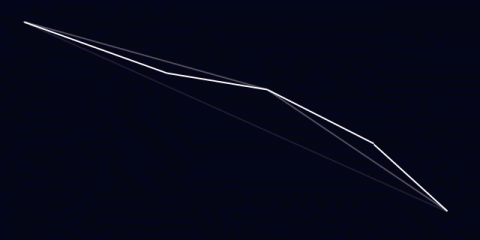
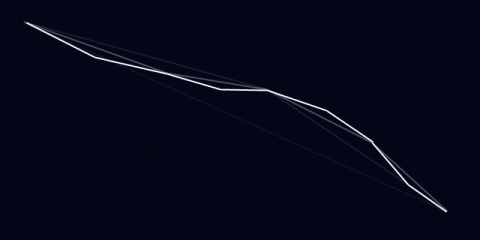
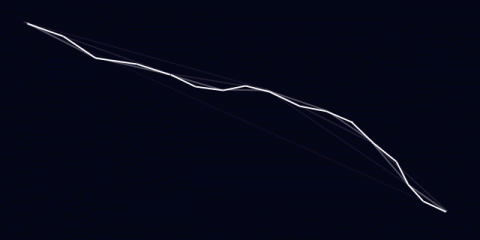
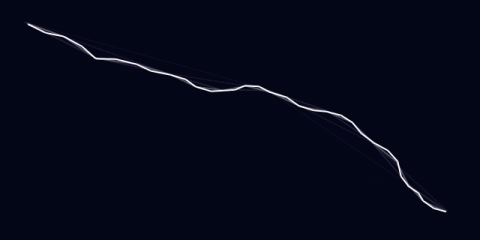
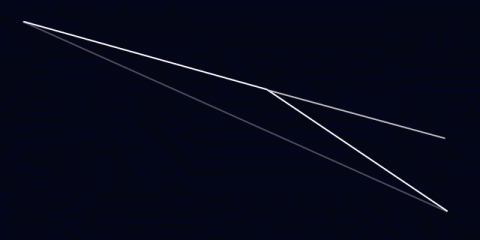
lightningstage2lightningstage3lightningstage4lightningstage5lightningstage6

That’s not bad.  Already, it looks at least kinda like lightning.  It has about the right shape.  However, lightning frequently has branches: offshoots that go off in other directions.

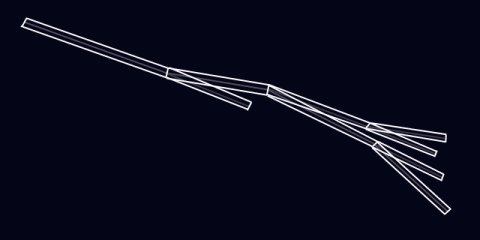
To do this, occasionally when you split a bolt segment, instead of just adding two segments (one for each side of the split), you actually add three.  The third segment just continues in roughly the first segment’s direction (with some randomization thrown in)

direction = midPoint - startPoint;
splitEnd = Rotate(direction, randomSmallAngle)*lengthScale + midPoint; // lengthScale is, for best results, < 1.  0.7 is a good value.
segmentList.Add(new Segment(midPoint, splitEnd));

Then, in subsequent generations, this, too, will get divided.  It’s also a good idea to make these splits dimmer.  Only the main lightning bolt should look fully-bright, as it’s the only one that actually connects to the target.

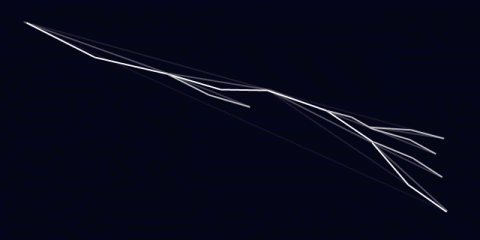
Using the same divisions as above (and using every other division), it looks like this:

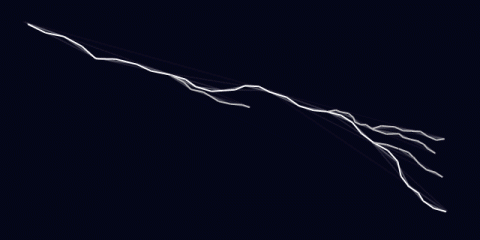
lightningsplitstage2lightningsplitstage4lightningsplitstage6Now that looks a little more like lightning!  Well..at least the shape of it.  But what about the rest?
Adding Some Glow

Initially, the system designed for Procyon used rounded beams.  Each segment of the lightning bolt was rendered using three quads, each with a glow texture applied (to make it look like a rounded-off line).  The rounded edges overlapped, creating joints.  This looked pretty good:

lightningtest

..but as you can see, it tended to get quite bright.  It only got brighter, too, as the bolt got smaller (and the overlaps got closer together).  Trying to draw it dimmer presented additional problems: the overlaps became suddenly VERY noticeable, as little dots along the length of the bolt.  Obviously, this just wouldn’t do.  If you have the luxury of rendering the lightning to an offscreen buffer, you can render the bolts using max blending (D3DBLENDOP_MAX) to the offscreen buffer, then just blend that onto the main scene to avoid this problem.  If you don’t have this luxury, you can create a vertex strip out of the lightning bolt by creating two vertices for each generated lighting point, and moving each of them along the 2D vertex normals (normals are perpendicular to the average of the directions two line segments that meet at the current vertex).

That is, you get something like this:

lightningvertices

Animation

This is the fun part.  How do you animate such a beast?

As with many things in computer graphics, it requires a lot of tweaking.  What I found to be useful is as follows:

Each bolt is actually TWO bolts at a time.  In this case every 1/3rd of a second, one of the bolts expires, but each bolt’s cycle is 1/6th of a second off.  That is, at 60 frames per second:

  • Frame 0: Bolt1 generated at full brightness
  • Frame 10: Bolt1 is now at half brightness, Bolt2 is generated at full brightness
  • Frame 20: A new Bolt1 is generated at full, Bolt2 is now at half brightness
  • Frame 30: A new Bolt2 is generated at full, Bolt1 is now at half brightness
  • Frame 40: A new Bolt1 is generated at full, Bolt2 is now at half brightness
  • Etc…

Basically, they alternate.  Of course, just having static bolts fading out doesn’t work very well, so every frame it can be useful to jitter each point just a tiny bit (it looks fairly cool to jitter the split endpoints even more than that, it makes the whole thing look more dynamic).  This gives:

And, of course, you can move the endpoints around…say, if you happen to have your lightning targetting some moving enemies:

So that’s it!  Lightning isn’t terribly difficult to render, and it can look super-cool when it’s all complete.

2009.02.05 - Collision Detection Performance (Volume 2)

Yikes, I’m getting backlogged on the stuff I want to write about!  <Insert generic complaint about how work is eating up most of my time here>

Anyway, this will probably be way shorter than it deserves, but my memory on the subject is about 3 months old.  Basically, this will be more or less a short chronicle of the dumb story of the mesh vs. mesh tests.

Appearances Can Be And Are Frequently Deceiving

When I started work on the collision detection observation, there was one surprising fact: the mesh vs. mesh code (used to determine whether the player was intersecting enemy ships) was working at full speed!  I didn’t seem to have to do any optimization at all on it to get it working.

I did, however, opt to go ahead and change the functions to not be recursive (as the current implementation was, of course, recursing into both meshes’ sphere trees).  When I finished that work, suddenly, the routine was much, much slower.  Was, in this case, the recursion overhead better than what it took to handle the double tree recursion in a non-recursive way?

The Answer May Surprise You

While I was working out the kinks in the non-recursive version, I had added some visual feedback to display unambiguously when the meshes were colliding.  While experimenting, I reverted back to the old (recursive) method, and found out something surprising: the collision results weren’t accurate!  It was reporting collision in cases where the player was inside of the object’s space, but nowhere near any edges!

Turns out, there was an erroneous fall-through case, and it was falling through to a “true” result, causing the entire collision test to short-circuit with an invalid collision result.  Sure the original routine was fast, but it didn’t work at ALL.  Now that I’d fixed that and had an accurate version, it was super, super slow.  Now it became an imperative to optimize.

Double Dribble

Through the course of optimizing the routine, I tried all sorts of crazy stuff.  I eliminated the recursion, I tried AABB vs. Rotated AABB tests, I tried Sphere vs. AABB tests, etc.  There was nothing that I could do.  As I was stepping through the code, however, I started noticing something odd: there were duplicate triangles all over the place.  I would see the same triangle tens of times in a given collision test.

As it turns out, the way I was dividing up the mesh in the tree creation routine was boneheaded.  What I would do was as follows:

  1. If the current set of triangles has less than a specified number of entries, stop splitting the mesh, we’ve reached a leaf node.
  2. Figure out the bounding box of the current set of triangles
  3. Find the axis on which it was best to split the set of triangles (where best was determined as the most balanced split, i.e. where the difference between triangle counts on the left and right of the split was lowest)
  4. For each triangle
    1. If the triangle has a vertex to the left of the split, add it to the left side.
    2. If the triangle has a vertex to the right of the split, add it to the right side.
  5. Once the mesh is divided into the two sets, recurse into each set to split it further as necessary

Now, a cursory analysis of this algorithm should tell you that step 4 is horribly broken.  If a triangle straddles the split, it would get added into both sides, thus expanding the bounding boxes of each sub element to encompass all triangles that straddle the split, causing there to be tons of duplicates of the same triangles throughout the code.

The correct way to do it would be:

  1. If the current set of triangles has less than a specified number of entries, stop splitting the mesh, we’ve reached a leaf node.
  2. Figure out the bounding box of the current set of triangles
  3. Find the axis on which it was best to split the set of triangles (where best was determined as the most balanced split, i.e. where the difference between triangle counts on the left and right of the split was lowest)
  4. For each triangle
    1. Calculate the centroid of the triangle (i.e. average the 3 vertices).
    2. If the centroid is less than the split, add the triangle to the left, OTHERWISE add it to the right.
  5. Once the mesh is divided into the two sets, recurse into each set to split it further as necessary

There, now a triangle only gets added to the side that it’s MOSTLY on, and there are no duplicates.  This change greatly boosted the speed of the collision, however there were cases where it would still cause a framerate dip.  Curses and drat!

All the King’s Horses…

Try as I might, I could not get the mesh vs. mesh intersection test to perform well.  So what happened when you get into a situation like that?  You do what every game developer does: you cheat!

What existed at the time was a wicked fast sphere vs. mesh collision test.  So rather than treat the player ship as a mesh, I opted to treat it as a representative collection of spheres (There are 29 spheres total, and it’s a pretty good approximation of the player ship – in fact, it’s probably better than necessary).

Suddenly, player vs. enemy collision performance was great!  Since this was the only place that I had needed a mesh vs. mesh, I could get rid of that slow beast.

~fin~

All of the collision code is complete, now, so next (give or take a post or two) I’ll talk about something with a bit more of a visual element – Bolts of lightning!

2008.12.22 - Collision Detection Performance (Volume 1)

I have been hard at work on my game (in my ridiculously limited spare time) for the last month and a half. One major hurdle that I’ve had to overcome was collision detection code. Specifically, my collision detection performed great on my PC, but when running it on the Xbox 360, everything would slow to a crawl (in certain situations).

The types of collision detection I have to deal with are varied, due to the weird way that I handle certain classes of obstacle (like walls):

  • Player bullets vs. Enemy – Player bullets are, for simplicity, treated as spheres, so sphere/mesh testing works here.
  • Enemy bullets vs. Player – Same as above.
  • Player vs. Wall – Because the game’s playing field is 2D, the walls in-game are treated as 2D polygons, so it boils down to a 2D mesh vs. polygon test.
  • Player vs. Enemy – Mesh vs. Mesh here
  • Beam vs. Enemy – The player has a bendy beam weapon.  I divide the curved beam up into line segments, and do ray/mesh tests.

The worst performance offender was, surprisingly, the sphere vs. mesh test, which will be the subject of this article.  Before optimizing, when I’d shoot a ton of bullets in a certain set of circumstances, the framerate would drop well into the single digits, because the bullet vs. mesh (sphere vs. mesh) collision couldn’t keep up.  Here are the things that I changed to get this test working much, much faster.

When using Value Types, Consider Passing As References

One thing that was slowing my code down was all of the value type copying that my code was doing.  Take the following function:

public static bool SphereVsSphere(Vector3 centerA, float radiusA, Vector3 centerB, float radiusB)
{
  float dist = radiusA+radiusB;

  Vector3 diff = centerB-centerA;
  return diff.LengthSquared() < dist*dist;
}

Simple, yes?  This function, however, falls prey to reference type copying.  You see, “centerA” and “centerB” are both passed in by value, which means that a copy of the data is made.  It’s not an issue when done infrequently, but with the number of SphereVsSphere calls that were happening during a given frame, the copies really started to add up.

There’s also a hidden set of copies:  the line “Vector3 diff = centerB-centerA” also contains a copy, as it passes centerB and centerA into the Vector3 subtraction operator overload, and they get passed in by value.  Also, a new Vector3 gets created inside of the operator then returned, which, I believe, also copies the data into diff.

To eliminate these issues, you should pass all of your non-basic value types (that is, anything that’s not an int, bool, float, anything like that) by reference instead of by value.  This eliminates all of the excess copies.  It does come at a price, though: in my opinion, it does make the code considerably uglier.

Here’s the updated routine:

public static bool SphereVsSphere(ref Vector3 centerA, float radiusA, ref Vector3 centerB, float radiusB)
{
  Vector3 diff;
  Vector3.Subtract(ref centerA, ref centerB, out diff);
  float dist = radiusA+radiusB;

  return diff.LengthSquared() < dist*dist;
}

Instead of having a nice-looking overloaded subtraction, now there’s a call to Vector3.Subtract.  While it’s not so bad in the case of a simple subtraction, when you have a more complicated equation, they pile up pretty quickly.  However, given the speed boost just making this change can give you, it’s totally worth it.

Use Hierarchical Collision Detection (But Use a Good Bounding Volume)

Heirarchical collision detection is a good thing.

For those of you that DON’T know, basically instead of testing your collider against every triangle in a mesh, you have a tree in which each node has a bounding volume, and the leaves contain the actual triangles.  The idea is that, by doing a much simpler collider vs. bounding volume test, you can elminiate large amoungs of triangles before you ever have to test them.

In this case, I was using a sphere tree, where each node in the tree has a bounding sphere, and the leaves of the tree contain actual mesh triangles.  I used spheres instead of AABBs (Axis-aligned bounding boxes) because transforming AABBs is expensive (and they become Oriented bounding boxes after the transform).  Transforming a sphere is easy, however.  None of my object transforms have scale data, so it’s a simple matter of transforming the sphere’s center.

However, the use of bounding spheres has a dark side.  Unless all of your heirarchy levels is roughly sphere-shaped, a sphere is a terribly inefficient bounding volume.  They’re usually much larger than the geometry that they contain, so there are more recursions into lower levels of the tree (think of there as being more dead space around the geometry when using spheres than bounding boxes).

By also adding bounding boxes to the data, I could use them where I’m not having to transform them.  For instance, because this is sphere vs. mesh, and the entire mesh is rigid, I can take the mesh’s world 4×4 matrix, and transform the sphere by the INVERSE of it.  This way, the sphere is in model space, and I can use the bounding volumes without having to do any transformations at lower levels.

But now I needed a sphere vs. AABB test.  However, I didn’t much care if it was exact or not, so instead I used a simple test where I expand the box by the radius of the sphere, then test whether the sphere is inside of the box or not.  Near the corners (surely this is where the term “corner case” comes from), this can give false positives, but it will never say the sphere DOESN’T intersect the box when it should say it does.  This is an acceptable trade-off.

public static bool SphereVsAABBApproximate(ref Vector3 sphereCenter, float sphereRadius, ref Vector3 boxCenter, ref Vector3 boxExtent)
{
  Vector3 relativeSphereCenter;
  Vector3.Subtract(ref sphereCenter, ref boxCenter, out relativeSphereCenter); // Get the sphere center relative to the box's center.
  Vector3Helper.Abs(ref relativeSphereCenter); // Per-component absolute value.

  return (relativeSphereCenter.X <= boxExtent.X+sphereRadius && relativeSphereCenter.Y <= boxExtent.Y+sphereRadius && relativeSphereCenter.Z <= boxExtent.Z+sphereRadius);
}

Simple, but effective.  Converting from using a sphere bounding volume to AABBs cut down the number of recursions (and triangle comparisons) being done dramatically, since the AABBs are a much tighter fit to the geometry.

Recursion Is Weird

One suggestion I got, also, was to eliminate recursion.  The heirarchical nature of the algorithm meant that my test was recursive.  Here was the test as originally written:

public static bool SphereVsAABBTree(ref Vector3 sphereCenter, float sphereRadius, CollisionTreeNode node)
{
  if (!SphereVsAABBApproximate(ref sphereCenter, sphereRadius, ref node.BoxCenter, ref node.BoxExtent))
    return false; // No collision with this node, return false

  if (node.Left != null)
  {
    // This means that there are Left and Right children (either they're both null, or both set).
    if(SphereVsAABBTree(ref sphereCenter, sphereRadius, node.Left))
      return true;
    return SphereVsAABBTree(ref sphereCenter, sphereRadius, node.Right); // A node with child nodes can't have triangles, so just return this result.
  }

  // This node has triangles, so test against them.  If any of them intersects the sphere, return success.
  for(int i = 0; i < node.Indices.Length; i+=3)
  {
    if(SphereVsTriangle(ref sphereCenter, sphereRadius, ref node.Vertices[node.Indices[i+0]], ref node.Vertices[node.Indices[i+1]], ref node.Vertices[node.Indices[i+2]]))
      return true;
  }
  return false;
}

As you can see, it recurses into child nodes until it either gets a false test out of both of them, or it reaches triangles.  But how do you eliminate recursion in a tree such as this?  More specifically, how do you do it while using a constant (non-node-count dependent) amount of memory?

The trick is as follows:  Assuming your nodes contain Parent pointers in addition to Left and Right pointers (where the Parent of the trunk of the tree is null), you can do it with no issue.  You track the node that you’re currently visiting (“cur”), and the node that you previously visited (“prev”, initialized to null).  When you reach a node, test as follows:

  • if you came to it via its parent (that is, prev == cur.Parent), you’ve never visited it before.
    • At this point, you should do your collision tests.  It’s a newly-visited node.
    • prev = cur
    • cur = cur.Left — This is basically “recursing” into the Left node.
  • If you arrived from its Left child, you visited it before and recursed into its left side
    • Since this node has already been visited, do not do the collision tests.  They’ve already been shown to be successful.
    • prev = cur
    • cur = cur.Right  — Since we recursed into Left last time we were here, recurse into Right this time.
  • If you arrived via its Right child, you’ve visited both of its children, so you are done with this node.
    • Again, this node has already been visited, so do not run the collision tests.
    • prev = cur
    • cur = cur.Parent — We’re done with this node, so go back to its parent.
  • When doing the collision tests, if a Sphere vs. AABB bounding volume test ever fails, we don’t have to “recurse” so go back to its parent.
    • prev = cur
    • cur = cur.Parent
  • Finally, if you do a Sphere vs. Triangle collision test and it succeeds, we can immediately return, as we have a guaranteed collision, and no more triangles or nodes need to be tested.

Doing all of this makes the routine bigger, but no recursion is necessary, so there’s no additional stack space generated per node visited (and no function call overhead, either).  The finished code is as follows (note that I also added a quick sphere vs. sphere test right at the outset, because it’s a very quick early out if the sphere is nowhere near the mesh):

public static bool SphereVsAABBTree(ref Vector3 sphereCenter, float sphereRadius, CollisionTreeNode node)
{
  CollisionTreeNode prev = null, cur = node;

  // At the top level, just do a sphere/sphere test for a super-quick out.
  if (!SphereVsSphere(ref sphereCenter, sphereRadius, ref node.Sphere.Center, node.Sphere.Radius))
    return false;

  while(cur != null)
  {
    if(prev == cur.Parent) // Only do the tests if we JUST got here.
    {
      if (!SphereVsAABBApproximate(ref sphereCenter, sphereRadius, ref cur.BoxCenter, ref cur.BoxExtent))
      {
        // No intersection?  Go ahead and just back out of this node now.
        prev = cur;
        cur = cur.Parent;
        continue; // By continuing, we bypass the rest of this code and re-visit the parent immediately.
      }

      for(int i = 0; i < cur.Indices.Length; i+=3)
      {
        if(SphereVsTriangle(ref sphereCenter, sphereRadius, ref cur.Vertices[cur.Indices[i+0]], ref cur.Vertices[cur.Indices[i+1]], ref cur.Vertices[cur.Indices[i+2]]))
          return true;
      }
    }

    // "Recurse"
    if (cur.Left != null)
    {
      if (prev == cur.Parent) // If this is the first visit to the node, recurse left.
      {
        prev = cur;
        cur = cur.Left;
        continue;
      }
      if (prev == cur.Left) // If this is the second visit, recurse right.
      {
        prev = cur;
        cur = cur.Right;
        continue;
      }
    }

    // If there are no child nodes or prev == cur.Right, return to the parent.
    prev = cur;
    cur = cur.Parent;
  }
  return false;
}

Mission Complete

After making that set of changes, the sphere vs. mesh tests no longer bog down on the Xbox, even in a degenerate case such as when there are tens or hundreds of bullets well inside of the mesh’s area.

Getting the sphere vs. mesh test working was a great accomplishment, but as much as I thought it was already working well, it turns out that mesh vs. mesh testing was a much bigger problem.  However, that’s another story for another day.

2008.11.25 - Understanding Half-Pixel and Half-Texel Offsets

For those of you not using Direct3D 9 or XNA, you can safely ignore this post (OpenGL and Direct3D 10 are immune to this particular oddity).  However, if you are, it’s likely that you’ve had to deal with the dreaded half-texel offset.  Today, after I don’t know how many years of using Direct3D, I came to realize that I really didn’t understand what the source of the issue was.  Now that I’ve sort of gotten a handle on it, I figured I’d post it to my super new journal.  Consider it a test run.

Coordinate Spaces

The first thing to note is the basic coordinate space.  I’m going to be referring to texture space and clip space a lot, so I thought I’d just do a quick refresher here on what I mean (mostly to make sure you’re thinking with the same terminology that I’m using).

  • Clip space – the post-projection half-cube of space where X,Y in [-1..1] and Z in [0..1]
    • X = -1 is the far left edge of the screen
    • X =  1 is the far right edge
    • Y = -1 is the bottom edge
    • Y = 1 is the top
    • Z = 0 is near (the near plane)
    • Z = 1 is far (the far plane)
  • Texture space – the area where u,v in [0..1] on a texture map making up a single end-to-end repeat of the texture.
    • 0,0 represents the upper-left coordinate on the texture
    • 1,1 is the lower-right.

For simplification, we can ignore the Z direction in clip space, since this article is really about the screen-space aspects of it.

Texture Sampling

Texture sampling is pretty straightforward.

In this diagram (and future diagrams), I’m using a 4×4 texture.  The [0..1] range in both X and Y map exactly to the range of the texture.  Note, here, that the center of the upper-left texel does not lie at 0,0; instead, 0,0 refers to the upper-left corner of that texel.  This is an important thing: if you are using bilinear filtering and you want to sample color data from a single texel, you need to sample from the center of the texel instead of the corner.  To do that, you’d sample from a half-texel in (that is, for this 4×4 texel, you’d want to sample from (0.125, 0.125), because a texel’s width in texture space is .25 (each texel is 1/4 of texture space), and half of that is 0.125).

A side effect of this is that, if you have bilinear sampling and wrapping on, sampling along the left edge gives you exactly the same data as sampling along the right edge at the same y coordinate.  That is, in both cases, you get a perfect blend of the texels on either end of the texture.  This is true for the borders between texels in general: sampling where the “dot” is on the image above is the only way to get a pure sample of a texel with bilinear filtering.  Anywhere else will be a blend between two.  Edges (the lines) are where the two texels neighboring the edge are weighted evenly.

The upshot of this is that the official center of a texel is located where the center SHOULD be: half of a texel from the edge.  However, as we’ll see in a moment, the rule for sampling texels does not apply to pixels.

Pixel Coordinates Are Weird And Unintuitive

When referring to “pixel coordinates” vs. “texel coordinates,” pixel coordinates are, for lack of a better way to explain it, the coordinates used when rendering to the screen (or a render target).  The pixels are the destination coordinates.

This is where clip space comes in: When you render your geometry, it goes through the gauntlet of matrices, ending with the projection matrices, and ends up in clip space (with x and y both being in [-1..1] for the visible area of the screen).

This diagram is the way that clip space maps to pixels.  note that the upper-left clip space coordinate (-1, +1) is actually RIGHT ON the pixel center.  This is the root cause of the whole offset problem.

Basically, say you have a screen-sized texture.  if you draw it to the screen using a full-screen quad (clip space from upper-left (-1,1) to lower-right (1, -1)), the upper-left pixel would sample the very upper-left corner of your quad, which would give you texture coordinates of (0,0).  But remember: that’s not the center of the texel!  It’s actually the upper-left corner of the texel.  With bilinear filtering, instead of getting a pure sample of your texture, you have a perfect blend of all 4 surrounding texels.

In simpler terms: the half-pixel/half-texel offset exists because there’s a discrepancy between how the centers of pixels and the centers of texels are computed.

To fix this, you could simply offset your texture coordinates by a half-texel before sampling (that is, when your shader gets its uv coordinate, you’d add a half texel ( (.125, .125) for our 4×4 example) before sampling, which would then give you a perfectly lined-up texture sample, and you’d get a great 1:1 mapping of pixels to texels.

However, there’s another problem.  What happens when you’re using multisample anti-aliasing (MSAA)?

Weird Pixel Centers and MSAA

So, we now know that the center of the origin pixel is actually the upper-left coordinate of clip space.  This causes problems when MSAA is turned on.  With MSAA, the geometry is sampled multiple times per pixel, using a set of points that exist within the pixel’s square (while a pixel is not really a square, but a point sample within a square, MSAA effectively treats a pixel as multiple samples in a square).

As an (important) aside: with MSAA on, textures are still only sampled once, from the pixel center.  MSAA does not affect the UV coordinates you get for a given pixel, it merely affects geometry coverage.

Continuing with our example, here’s a hypothetical, simple MSAA strategy wherein a pixel is sampled four times (4x MSAA) in an aligned grid:

This diagram illustrates the issue with the standard [-1..1] full screen quad, D3D’s choice of pixel center, and MSAA.  Even with a full-clip-space (and, thus, traditionally full-screen) quad, along the top and left edges, some samples no longer touch the quad, and thus the edges are not entirely filled in (a pure white quad drawn to a render target that had been cleared to black would have grey edges along the top and left).

You’ve likely seen this in a ton of games: when you turn on full-screen anti-aliasing, there’s a weird line down the side of the screen during fadeouts and the like.  This is the pixel offset problem rearing its head.

How do you fix this?  Turns out, it’s simple.  When drawing a full-screen quad, instead of adding a half-texel to the uv coordinates, you should instead SUBTRACT a half-pixel from the position (not the uv coordinates).  This shifts the quad so that it lies perfectly within the grid in the diagram, so that every MSAA sample hits the geometry.  As an added bonus, it means that the UV samples that you get will already be in the texel centers; no more adding a half-texel required!

Note, that when I say “subtract a half-pixel from position,” what I mean is “move the position of the quad one half-pixel towards the upper-left.  To do this, you actually add (-1/width, +1/height).  The reason for the signs (-, +) is that you’re moving left and up.  In post-projection space, -x is left, and +y is up.  The reason that it’s 1/width instead of 0.5/width is because, in clip space, the coordinates range from -1 to 1 (width 2), and not from 0 to 1 (width 1) like they do in textures, so you need to double the movement to account for that.

Of course, if you’re drawing world geometry and using its screen coordinates to index into a texture map (like, for instance, if you’re using light pre-pass rendering), you’ll still want to add the half-texel instead.  In fact, here is a great reference on how to handle this case.

Take Us Home, Article

The half-texel/half-pixel offset is a bizarre feature in Direct3D 9 (and, by extension, XNA).  In order to properly handle it when using full-screen-sized textures:

  • When rendering a full-screen (or otherwise screen-aligned quad), subtract a half-pixel’s size from the output vertex position from your vertex shader.  This will ensure both that the texel centers line up with the pixel centers (for proper texture sampling) AND that the quad will play nice along the left and top edges of the screen with MSAA.
  • When rendering normal geometry, the geometry is already in the proper place (i.e. it already plays fine with MSAA).  Consequently, you should add a half-texel to the uv coordinates for your full-screen sample.   This will allow you to sample from the texel centers as desired.

While this article refers mostly to full-screen effects, this information is generally more useful when downsampling textures, as you need to know where your sample points on the source texture will actually hit when rendering (and you’ll want bilinear filtering for, for instance, a 4-tap 4×4 average downsample).

Hopefully, if you were as confused by the half-texel offset as I was, this helps clear things up.

Additional references from MSDN:

Directly Mapping Texels to Pixels (Direct3D 9)

Coordinate Systems (Direct3D 10)

2008.11.25 - New Look, New Journal, New Posts

I’m slowly combining my two journal spaces – one of which I barely used (formerly drilsej.com, which now just redirects here), and one of which I slightly-more-than-barely used (my gamedev.net dev journal, on which I will likely still mirror any game development-specific postings).  This is all funnelling into a brand new domain, drilian.com.  This very site!

There are a few reasons for this:

  1. While I really like posting on gamedev.net and its journal space, there are some things I really dislike about it (for instance, when I stop posting for 6 months, my dev journal becomes an empty desert wasteland, which can be considered annoying.  Who wants to visit a blog frontpage and see no posts?).
  2. I never really used my main webpage (that I’ve had for 10 years now) for anything except occasionally posting projects that I’ve worked on.  I’ve merged that stuff onto this page – it’s all now in the same place as my journal.
  3. Not that I post a lot of personal information (for instance, my wife constantly laments that there are no mentions of her on any of my webpages – and hey, now there is!), but I always felt a little weird posting non-development posts on gamedev’s journal space.  Now I can generally post whatever I feel like posting and not feel all weirded out.

Likely there are other reasons I’m not thinking of, but that’s okay.

I’m certainly not going to promise updates of any frequency, sadly, as my work (and, I’ll be honest, gaming) schedule has prevented me from doing a whole lot of spare-time development recently (where recently is somewhere in the 6-month range.  Note that the previous post is from MAY).  However, I am going to (slightly) formalize my post format a bit.  Mostly, I’m going to start using article titles that actually reflect the post subject instead of a hideous mass of puns.  This all comes complete with my “no trans fats” guarantee.

Hopefully, for those of you who have read my gamedev.net journal, and for those who watched drilsej.com (did anyone?), and for those who are new, you’ll all find something of interest here.  And hopefully I’ll have interesting stuff to post for the forseeable future!

Welcome to drilian.com.  Enjoy!

2008.05.20 - HUDson Hawk (The King of Terrible Puns Returns!)

Okay, I’m back! Sorry for the delay, my job got super-crazy there for a month or so. It hasn’t really let up too much, but it’s enough that I was able to get a little bit done. However, nothing really to show for it, I’m afraid.

But, I do have SOMETHING interesting: a look into the HUD design process. This work was done almost a month ago, but I haven’t had time to even sit down and write this entry until now.

Necessary elements

There are a few elements that are necessary on the in-game HUD:

  1. Player name – Especially important in two-player mode, having both players’ names on-screen will help to differentiate which statistics belong to which player
  2. Lives – Also very important is the number of lives that a player has.
  3. Score – Points. Very important.
  4. Weapon Charge – You’ll acquire weapons charge throughout the course of the game, which you’ll be able to spend to temporarily upgrade your weapons. This meter will show you how much charge you have. I chose to represent this with a blue bar.
  5. Secret Charge – I’m not quite ready to divulge this little gem, but this meter only fills up when the blue (weapon charge) meter is completely full. I chose yellow for this one.

Mockups!

I quickly made a mockup of my initial idea for the hud.


Click to enlarge

The first suggested modification was to swap the two meters vertically. Because the yellow bar only fills up when the blue meter is full, it would be analogous to pouring in water (filling from the bottom up). I liked this concept, so I swapped the bars (I wanted to get just one readout set up, so I took out Player 2 for the next while):


Click to enlarge

At that point, I didn’t really feel that the look was consistent. The text didn’t match the bars, and I didn’t like the look of the gradient on the text. So I reworked both so that they had bright centers fading to darker colors at the top and bottom extremeties, which really unified the look of the various elements


Click to enlarge

At this point, it was noted that the bar looked kind of stupid relative to the text, since it’s so much larger. So the scale of the bars was modified to match the height of the text. This also allowed a little bit of the height to be taken out of the HUD.


Click to enlarge

At this point, I was happy with the layout, so I set out to figure out how to put the second player in. Initially I had two options:


Click to enlarge

The first one is sort of the “classic” two player layout. The second was optimized so that there would be a minimum of data sitting over where the enemies are coming from (potentially obscuring relevant enemy activity). However, everyone that I talked to (including myself, though I promise that dialogue was mostly internal) thought that option B was a pretty terrible-looking layout, so I scrapped it entirely…but I wasn’t entirely happy with the first option, either.

So I started to play around some more.
I spread out one bar across the entirety of the top of the screen, and placed the second one at the very bottom of the screen. It’s unobtrusive and quite neat:


Click to enlarge

…but it seemed a bit off-balance. Eventually, mittens had a great idea: why not mirror one of the bars (swap the elements left to right), so that it would be more or less radially balanced. So I basically did that, I moved the top player’s life count off to the right edge of the screen, and swapped the player name and the score of the bottom player. And it actually looks pretty good!


Click to enlarge

…but some people still really liked the “classic look”

Have Your Cake and Eat It, Too

So I opted for both! The default will be the new theme (conveniently entitled “Default”). But the option will be there for the “Classic” HUD, for those that prefer it.

So here they are!

Click to enlarge

The current UI layouts for the game!

Hope that gave you some insight into the craziness of the process! Enjoy!

(PS: If you haven’t already checked it out, you should go play Asplode! You can find it at mittens’ development journal. It’s fun!)

2008.04.04 - Scrollathon 2008

This previous weekend, I was able to accomplish another major milestone in game development: The Scrolling Background (TM) (C) (R) (BBQ).


Click to enlarge

Requisite Scrolling Video (Xvid AVI, ~2MB)

The Skinny On Scrolling

The interesting thing about the scrolling method that I settled on is that it’s not based on any sort of overall world coordinate system. World coordinates don’t actually exist, the only true coordinate system is the screen coordinate system (with coordinates ranging from -16,-9 to +16,+9, for a delicious [and integer-tastic] 32:18 [2x 16:9] visible area).

So how does it work? Each level will be built out of tiles, in order. Each tile has the following data:

  • A model to render
  • Collision Data
  • The Camera Path

The camera path for a tile is currently just an input position and an output position. That is, the position at which the camera ENTERS the tile, and the position at which the camera EXITS the tile.

Now, here’s the trick: Say you have two of the same tile next to each other. Each has an input coordinate of (0,1) and an output coordinate of (4, 0). What the system does is it moves the second one so that its input coordinate is in the same spot as the first one’s output coordinate. (that is, the second one’s input coordinate becomes effectively (4,0) like the first’s output coordinate and, relative to that, the second’s output coordinate becomes (8, -1)).

However, actual world coordinates aren’t strictly necessary, so whichever tile the camera is currently in is considered the “origin” tile. That is, it is used as the basis by which all other visible tiles get their on-screen positioning.

Thus, the setup is easy: figure out where on-screen (given the camera’s position in the tile) the tile should display, then make all of the visible tiles to the left and right relative to that.

This is nice for a few reasons:

First off, if, for some reason, a level were RIDICULOUSLY long, I would never have to worry about accumulating floating point round-off error.

The big thing is this allows me to have what is essentially a staple of the shoot-em-up game (and is actually quite visible in the video posted above): an endless loop of background.

These loops are especially useful for when fighting bosses. Say you’re zooming down a metallic corridor while scrapping with a boss that happens to be flying along with you. Rather than have to hope that the player finishes the fight before the camera hits the level’s end, you can just rely on the fact that the corridor will keep on looping until something triggers the loop’s end, signaling that the level should keep going (or end, assuming that there’s no more to the level).

This triggering system is not yet implemented, and I hope to get it done this weekend (though I have a ton of other, smaller items on the to-do list, so it may have to wait for the NEXT weekend).

Proximity Alert

One design element that was tricky was signaling to the player that the ship is too close to a wall. The obvious metric is, of course, a shadow. However, standard shadows only cast in one direction, which would be great if all we cared about was distance to the floor. However, we really need “distance to any object.” This looks like a job for the existing lighting system!

A new type of “light” was designed: essentially a black light, which has a center, a length, and a radius (thus, the actual light is more like a line light than a point light). Consequently, the fakey shadow from the ship will “cast” onto any surrounding objects.


Click to enlarge

And, once again, that’s all we have time for on this week’s episode of “What Did Drilian Do Last Weekend”. Stay tuned next week, same Bat-Time, same Bat-Channel!

2008.03.28 - One Pass, Two Pass, Red Pass, Blue Pass

Here it is: another late-week journal update that pretty much chronicles my weekend accomplishments, only later.

But First, Beams!

First up, here’s a preview of the powered-up version of the final main weapon for the project:


Click to enlarge

The beam itself actually locks on to targets and continually damages them. Implementation-wise, it’s a quadratic bezier. Initially, I tried to calculate the intersection of a quadratic-bezier-swept sphere (i.e. a thick bezier curve) and a bounding sphere exactly. That’s all great, only it becomes a quartic equation (ax^4 + bx^3 + cx^2 + dx + e == 0), which is ridiculously difficult to compute programmatically (just check the javascript source on this page to see what I mean). So I opted for another solution:

I divided the curve up into a bunch of line segments, treated those segments as sphere-capped cylinders (capsules), and did much simpler intersection tests. PROBLEM SOLVED!

When Is Deferred Shading Not Deferred Shading?

I also implemented Light Pre-Pass Rendering, which is sort of a “Low-Calorie Deferred Shading” that Wolfgang Engel devised recently. Considering my original plan for lighting was to only allow right around 3 lights on-screen at a time, this gives me a much greater range of functionality. It’s a three-step process, as illustrated below.

Render Object Normals (Cut a hole in a box)

Step 1: render all of the objects’ normals and depth to a texture. Due to limitations that are either related to XNA or the fact that I want to allow a multisampled buffer, I’m not sure which, I can’t read from the depth buffer, so I have to render the object depth into the same texture that the normal map is rendering into.

Given two normal components, you can reconstruct the third (because the normal’s length is one). Generally, Z is used on the assumption that the Z component of the normal is always pointing towards the screen. However, with bump mapping (and even vertex normals), this is not a valid assumption. So just having the X and Y normal components is not enough. I decided to steal a bit from the blue channel to store the SIGN of the Z component. This leaves me with 15 bits of Z data, which, given the very limited (near-2D) range of important objects in the scene, is more than plenty for the lighting (as tested by the ugly-yet-useful “Learning to Love Your Z-Buffer” page).

Consequently, the HLSL code to pack and unpack the normals and depth looks like this:

float4 PackDepthNormal(float Z, float3 normal)
{
  float4 output;

  // High depth (currently in the 0..127 range
  Z = saturate(Z);
  output.z = floor(Z*127);

  // Low depth 0..1
  output.w = frac(Z*127);

  // Normal (xy)
  output.xy = normal.xy*.5+.5;

  // Encode sign of 0 in upper portion of high Z
  if(normal.z < 0)
    output.z += 128;

  // Convert to 0..1
  output.z /= 255;

  return output;
}

void UnpackDepthNormal(float4 input, out float Z, out float3 normal)
{
  // Read in the normal xy
  normal.xy = input.xy*2-1;

  // Compute the (unsigned) z normal
  normal.z = 1.0 - sqrt(dot(normal.xy, normal.xy));
  float hiDepth = input.z*255;

  // Check the sign of the z normal component
  if(hiDepth >= 128)
  {
    normal.z = -normal.z;
    hiDepth -= 128;
  }

  Z = (hiDepth + input.w)/127.0;;
}

And, it generates the following data:


Click to enlarge

That’s the normal/depth texture (alpha not visualized) for the scene. The normals are in world-space (converting from the stored non-linear Z to world position using the texcoords is basically a multiply by the inverse of the viewProjection matrix, a very simple operation).

Render Pure Lighting (Put your junk in that box)

Next step, using that texture (the object normals and positions), you can render the lights as a screen-space pass very inexpensively (the cost of a light no longer has anything to do with the number of objects it’s shining on, it’s now simply a function of number of pixels it draws on). Bonus points: you can use a variation on instancing to render a bunch of lights of a similar type (i.e. a group of point lights) in a single pass, decreasing the cost-per-light even further.

The lighting data (pure diffuse lighting, in my case, though this operation can be modified in a number of ways to do more material lighting types and/or specular lighting if necessary, especially if you have a separate depth texture) is rendered into another texture, and it ends up looking as follows:


Click to enlarge

That’s a render with three small point lights (red, green and blue in different areas of the screen) as well as a white directional light.

Render Objects With Materials (Make her open the box)

Finally, you render the objects again, only this time you render them with materials (diffuse texture, etc). However, instead of doing any lighting calculations at this time, you load them from the texture rendered in step 2.

This ends up looking like this (pretty much what you expect from a final render):


Click to enlarge

And that’s how light pre-pass rendering works, in a nutshell. At least, it’s how it works in my case, which is very simplistic, but it’s all I need for the art style in my game. It’s a lot easier on the resources than deferred shading, while still separating the lighting from the objects.

Delicious!

Hopefully, in my next update, I’ll have an actual set of background objects (as that’s the next item on the list, but it does require the dreadful tooth-pulling that is “artwork,” so we’ll see how quickly I can pull this together.

Until next time: Never give up, never surrender!

2008.03.16 - Progress: Like Regress, Only Forward!

It’s been tricky to make much progress these last couple weeks – having a (non-gaming) coding job and being able to come home and work gets tricky, so a large majority of my game coding time is weekend time. Also, couple some deadlines at work, and you’ve got a large case of “I don’t want to code when I hit home.”

However: I did make a good deal of progress these last few weeks.

If you look at the screenshot in my last entry, it should be plain exactly HOW MUCH. Suddenly, my little experiment looks considerably like a GAME.


Click to enlarge

Also! GAMEPLAY VIDEO!
High Quality Xvid, 32MB
Low Quality Xvid, 3.5MB

Particles Make Me Sneeze

The biggest hurdle for this section of the project was the general-purpose particle system. Even though I’ve done a bunch of crazy graphics-related stuff, a particle system has NEVER been on that list. But no longer!

For my particles, I wanted the following data:

  • Position (3D)
  • Rotation (around Z)
  • Image Index (which image in the particle map to use)
  • Scale (how big the particle is scaled, relative to the particle map’s specified world size)

The particle map mentioned in that list is a simple list of texture coordinates into the particle texture (Which contains images for all of the particles), as well as the size of a given particle in world space.

The particles in this system are actually rendered using shader constants (2 float4 shader constants per particle), which gave me right around 100 particles per draw call. On my PC, I can push the system up to 24,000 particles before it starts to slow down. On the Xbox 360, it’s closer to 6000. Both of those are well within my game’s target maximum of 2000 particles, and I could probably get that number higher if I had to.

The State Machine Tells Way Fewer Lies Than the Political Machine

One thing I learned when working on Mop of Destiny was how to set up a totally sweet state machine in C++. I got to port those concepts over to C#, which made it even EASIER, given all of the reflection support. Note that I do the majority of the reflection calls at application startup, so the expensive calls are already done when it’s time to do the actual game running.

Each state can have three functions associated with it: Begin, Tick, End.

Begin is called on the transition to that state from some other state.
Tick is called every time the state gets run (once per frame)
End is called on the transition from that state to some other state.

Also, each state can have a number of transitions associated. They take the form of: “BooleanFunction = TargetState”

Every frame, before calling tick, the state machine core will run each of the specified functions. When one of them evaluates to true, it switches states to the new TargetState, which will then be run (unless one of ITS transitions triggers). A state can also call the SetState function direction, but having the transitions in the function attribute makes it really easy to see where a state can transition to.

See You Later, Allocater!

One of the most important things that I have been doing with my code is ensuring that, during the run of a game level, no memory is allocated. At all. The reason is the .Net garbage collector (GC).

The GC, on Windows, is triggered every 2MB of allocations (among other scenarios, including low-memory and lost-focus cases). On the Xbox 360, the GC runs ever 1MB of allocations. Since the GC pauses all threads while it does its thing, it’s better that it’s never triggered during runtime…ESPECIALLY if the heap is complicated and garbage collection is going to take a while.

To handle this, I’ve created a few of my own data structures, including the OrderlessList<T>. I’ve used OrderlessLists alot throughout my code. Simply stated, it’s an array (allocated at the time of the object with some maximum number of elements) in which the order of the objects is unimportant (i.e. it can be reordered and it doesn’t matter). Given the property of being able to reorder at any time, removal from the list is a simple matter of copying the last list over the top of the element being removed, then decreasing the reported size of the list.

For the bullets (both the player and the enemy bullets), there’s an OrderlessList of live bullets, and an OrderlessList of dead bullets. Whenever a bullet is needed, an object is retrieved from the dead bullet list, given its properties, and added to the live bullet list. Whenever a bullet dies (goes off-screen or hits an enemy), it is deactivated and returned from the live bullet list to the dead bullet list. No allocations necessary.

That’s right, it’s the ol’ “pool of objects so you don’t have to allocate” trick. But hey, it works!

Rambling Is For Cowboys, Not Coders

Alright, enough talk! Tomorrow is another day at work, so it’s likely I won’t make any more progress until next weekend.

In the meantime, death is but a door, time is but a window; I’ll be back.